


As a supplier of Ford OEM backup cameras, I often encounter customers who face issues with their backup cameras not working. Troubleshooting these problems can be a bit tricky, but with a systematic approach, you can usually identify and resolve the issue. In this blog post, I'll guide you through the process of troubleshooting a Ford OEM backup camera that's not functioning properly.
1. Initial Checks
Before diving into complex diagnostics, start with some basic checks. First, make sure your vehicle is in reverse gear. The backup camera is designed to activate only when the car is in reverse. Sometimes, a simple oversight can lead to the impression that the camera isn't working.
Next, take a look at the camera lens. It's possible that dirt, mud, or debris has accumulated on the lens, obstructing the view. Use a clean, soft cloth to gently wipe the lens. If the camera is still not working after cleaning the lens, move on to the next steps.
2. Check the Power Supply
A common reason for a non - working backup camera is a lack of power. The camera needs a proper electrical connection to function. Start by inspecting the fuse related to the backup camera system. Refer to your vehicle's owner's manual to locate the fuse box and find the specific fuse for the backup camera. If the fuse is blown, replace it with a new one of the same amperage.
Another aspect of the power supply is the wiring. Check for any visible signs of damage to the wiring harness that connects the camera to the vehicle's electrical system. Look for frayed wires, loose connections, or cuts. If you find damaged wiring, it might be necessary to repair or replace the affected section. However, this can be a complex task, and if you're not experienced with automotive wiring, it's advisable to seek professional help.
3. Examine the Display Unit
The backup camera's image is displayed on a screen inside the vehicle, usually the infotainment system. Check if the display unit is working properly. Try turning the vehicle on and off a few times to see if the camera image appears. Sometimes, a simple system reset can solve the problem.
If the display unit shows a blank screen or an error message, it could indicate an issue with the display itself or the connection between the camera and the display. Check the cables connecting the camera to the display unit. Make sure they are securely plugged in. If possible, try disconnecting and reconnecting the cables to ensure a proper connection.
4. Software and System Updates
In some cases, a non - working backup camera could be due to outdated software. Ford vehicles often receive software updates that can improve the performance of various systems, including the backup camera. Check if there are any available software updates for your vehicle. You can do this by visiting the official Ford website or taking your car to a Ford dealership.
Updating the software might require some technical knowledge, especially if you're doing it yourself. If you're not comfortable with the process, it's best to have a professional at the dealership perform the update.
5. Camera Malfunction
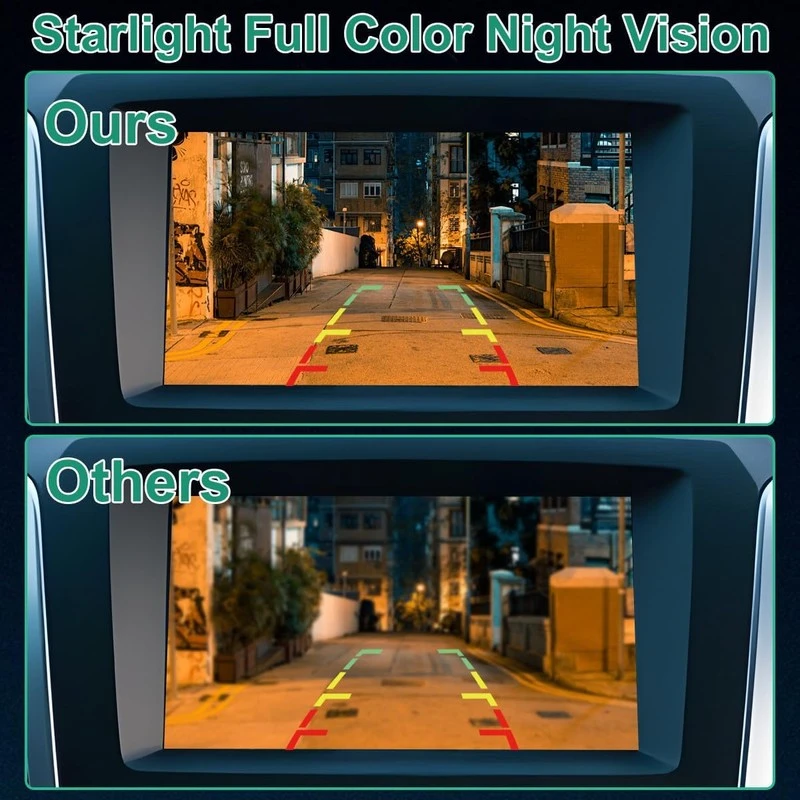
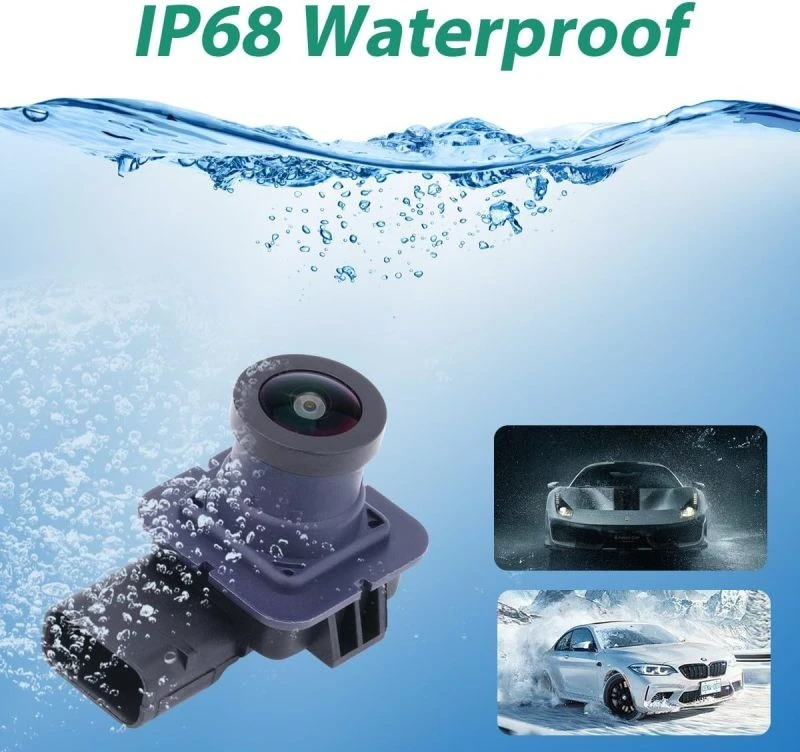
If all the above checks have been done and the camera still isn't working, it's possible that the camera itself is faulty. Ford offers a range of OEM backup cameras for different models. For example, if you own a Lincoln MKC (2015 - 2019), you can check out the Lincoln MKC (Part No. EJ7T19G490) 2015 - 2019 OEM Backup Camera. For a Ford Taurus (2013 - 2019), the Ford Taurus (Part No. EG1Z19G490) 2013 - 2019 OEM Backup Camera might be the right replacement. And for a Ford Explorer (2013 - 2015), consider the Ford Explorer (Part No. EB5Z19G490) 2013 - 2015 OEM Backup Camera.
To confirm if the camera is malfunctioning, you can try testing it with a known - working display unit if possible. If the camera still doesn't produce an image on a different display, it's likely that the camera needs to be replaced.
6. Professional Help
If you've gone through all the troubleshooting steps and still can't get the backup camera to work, it's time to seek professional help. A Ford dealership or a qualified automotive technician has the expertise and specialized tools to diagnose and repair complex camera system issues. They can perform in - depth diagnostics using advanced equipment to pinpoint the problem accurately.
7. Warranty Considerations
If your vehicle is still under warranty, it's important to check if the backup camera system is covered. If it is, contact your Ford dealership. They can assist you with the warranty claim process and ensure that the camera is repaired or replaced at no cost to you.
Conclusion
Troubleshooting a Ford OEM backup camera that's not working can be a step - by - step process. Starting with basic checks like ensuring the vehicle is in reverse and cleaning the lens, moving on to power supply checks, display unit inspections, software updates, and finally, considering camera replacement or professional help.
If you're in the market for a replacement Ford OEM backup camera, we're here to help. As a trusted supplier of Ford OEM backup cameras, we offer high - quality products that are designed to meet the exact specifications of your vehicle. Whether you need a camera for a Lincoln MKC (Part No. EJ7T19G490) 2015 - 2019, a Ford Taurus (Part No. EG1Z19G490) 2013 - 2019, or a Ford Explorer (Part No. EB5Z19G490) 2013 - 2015, we have you covered. Contact us to discuss your requirements and start the procurement process.
References
- Ford Owner's Manuals
- Automotive repair guides for Ford vehicles
- Ford official website for software update information


