


Hey there! As an Audi handle camera supplier, I often get asked about how to connect these cool cameras to mobile phones. It's actually not as complicated as it might seem, and in this blog, I'll walk you through the whole process step by step.
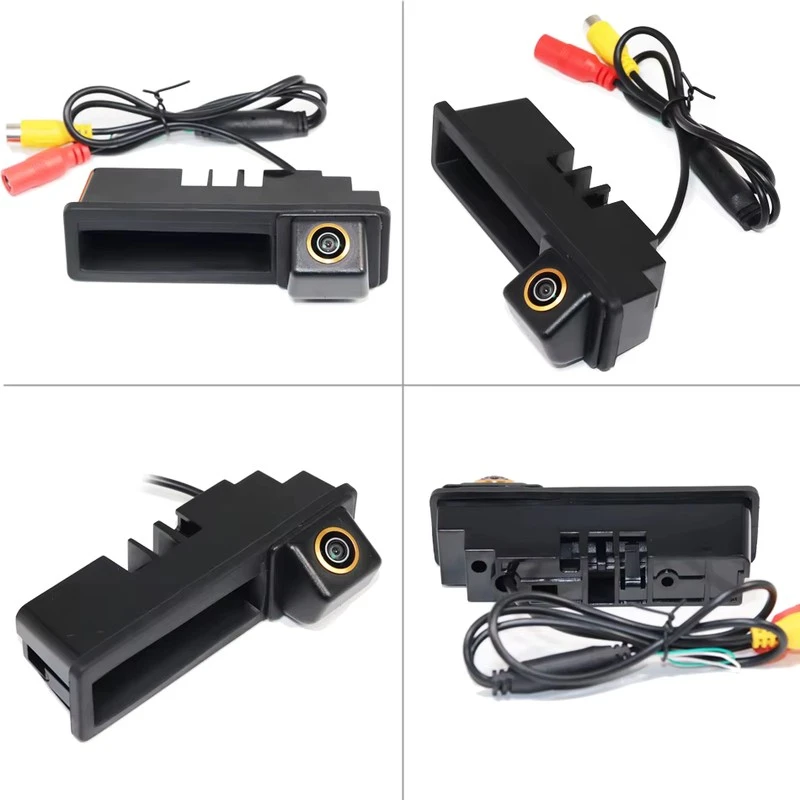
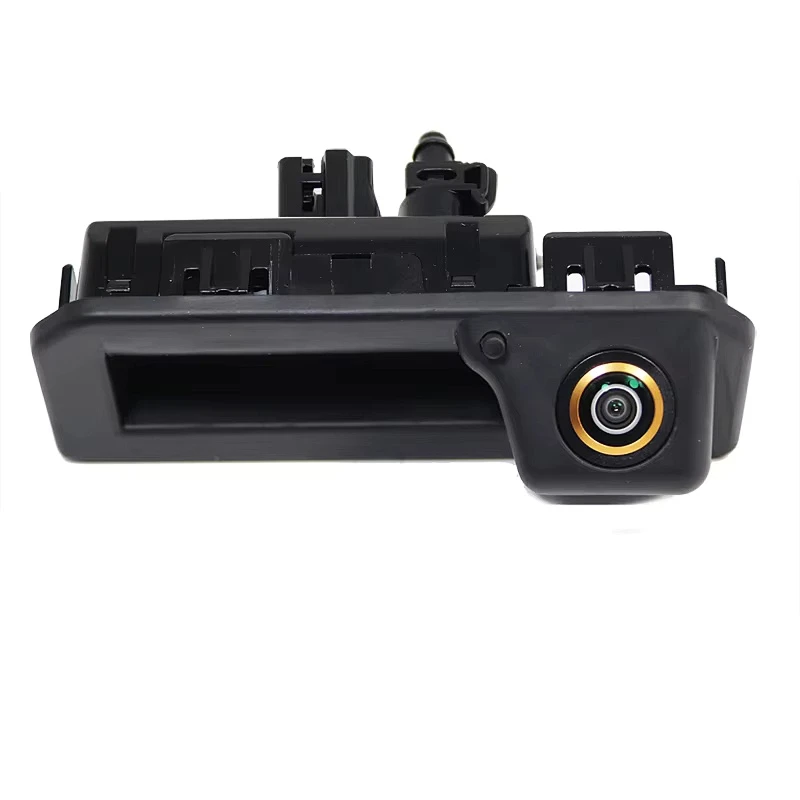
First off, let's talk about the different types of Audi handle cameras we offer. We've got the Audi A6 Extended Handle - Mounted Camera, which is great for those who need a bit more reach and flexibility. Then there's the Audi Compact Handle Camera (OEM - Spec Design), perfect for a sleek and OEM - like look. And if you've got an Audi A6L with a short wheelbase, our Audi A6L Handle Camera (Short Wheelbase) is the one for you.
Prerequisites
Before you start connecting your Audi handle camera to your mobile phone, there are a few things you'll need:
- A compatible mobile phone: Most modern smartphones will work, but make sure it has Bluetooth or Wi - Fi capabilities, depending on how your camera connects.
- The Audi handle camera: Obviously, you need the camera itself. Make sure it's fully charged or connected to a power source if it's a wired - power model.
- The camera's manual: This is super important. It'll have all the specific details about your camera model, including the connection process and any special settings.
Step 1: Check the Camera's Connectivity Options
Most of our Audi handle cameras support either Bluetooth or Wi - Fi connectivity. Some might even support both. You'll need to figure out which option your camera uses. Usually, this info is in the manual or on the camera's packaging.
If it's a Bluetooth - enabled camera, turn on the Bluetooth on your mobile phone. Go to your phone's settings, find the Bluetooth option, and switch it on.
For Wi - Fi cameras, make sure your phone is connected to the same Wi - Fi network as the camera. Some cameras create their own Wi - Fi hotspot, so you might need to connect your phone to that specific network.
Step 2: Pairing the Camera with Your Phone
Bluetooth Pairing
If your camera uses Bluetooth, put the camera in pairing mode. This is usually done by pressing a specific button on the camera for a few seconds until the Bluetooth indicator starts flashing.
On your phone, go to the Bluetooth settings and look for the camera's name. It might be something like "Audi Handle Camera" or a specific model number. Tap on it to start the pairing process. You might need to enter a passcode, which is often 0000 or 1234, but check the manual to be sure.
Once the pairing is successful, your phone and camera are now connected via Bluetooth. You should be able to access the camera's feed on your phone's app (more on that later).
Wi - Fi Pairing
For Wi - Fi cameras, open the camera's app on your phone. If you don't have the app yet, you can usually download it from the App Store (for iOS) or Google Play (for Android).
Launch the app and look for the option to connect to a camera. Select the Wi - Fi connection option. The app will search for available cameras on the network. When it finds your Audi handle camera, select it and enter the camera's password if required.
After a few seconds, the app should establish a connection with the camera, and you'll be able to see the live feed on your phone screen.
Step 3: Using the Camera App
Once your camera is connected to your phone, it's time to explore the app. The app is where you'll control most of the camera's functions, like taking photos, recording videos, adjusting settings, and more.
Here are some common features you might find in the app:
- Live View: This shows you what the camera is seeing in real - time. You can use this to frame your shots or check the camera's position.
- Photo and Video Capture: Tap the appropriate buttons in the app to take photos or start/stop video recording.
- Settings: You can adjust things like resolution, frame rate, exposure, and white balance. Play around with these settings to get the best results.
Step 4: Troubleshooting
Sometimes, things don't go as smoothly as we'd like. Here are some common issues and how to fix them:
- Connection Problems: If you're having trouble connecting the camera to your phone, first make sure both devices are turned on and in range. Try restarting both the camera and your phone. If it's a Wi - Fi connection, check if the network is stable.
- App Not Working: If the app crashes or doesn't load properly, try uninstalling and reinstalling it. Make sure your phone has enough storage space and that the app is up - to - date.
- Poor Image Quality: Check the camera's settings in the app. Make sure the resolution is set to a high enough level. Also, clean the camera lens to remove any dirt or smudges.
Why Choose Our Audi Handle Cameras?
Our cameras are designed with the latest technology to provide you with high - quality images and videos. They're built to be durable and withstand different weather conditions, so you can use them in all sorts of situations.
The OEM - spec designs ensure that the cameras blend in seamlessly with your Audi, giving your car a clean and professional look. And with easy connectivity to your mobile phone, you can capture and share your driving experiences with just a few taps.
Contact Us for Purchase and More Information
If you're interested in buying our Audi handle cameras or have any questions about the products or the connection process, don't hesitate to get in touch. We're here to help you make the best decision for your needs. Whether you're a car enthusiast looking to enhance your driving experience or a professional in the automotive industry, our cameras are a great choice.
References
- Audi Handle Camera User Manuals
- Mobile Phone Operating System Guides


