


As a supplier of Audi handle cameras, I often get asked whether these cameras can be connected to a computer. In this blog post, I'll delve into this question, exploring the technical aspects, potential benefits, and the steps involved in making such a connection.
Technical Feasibility
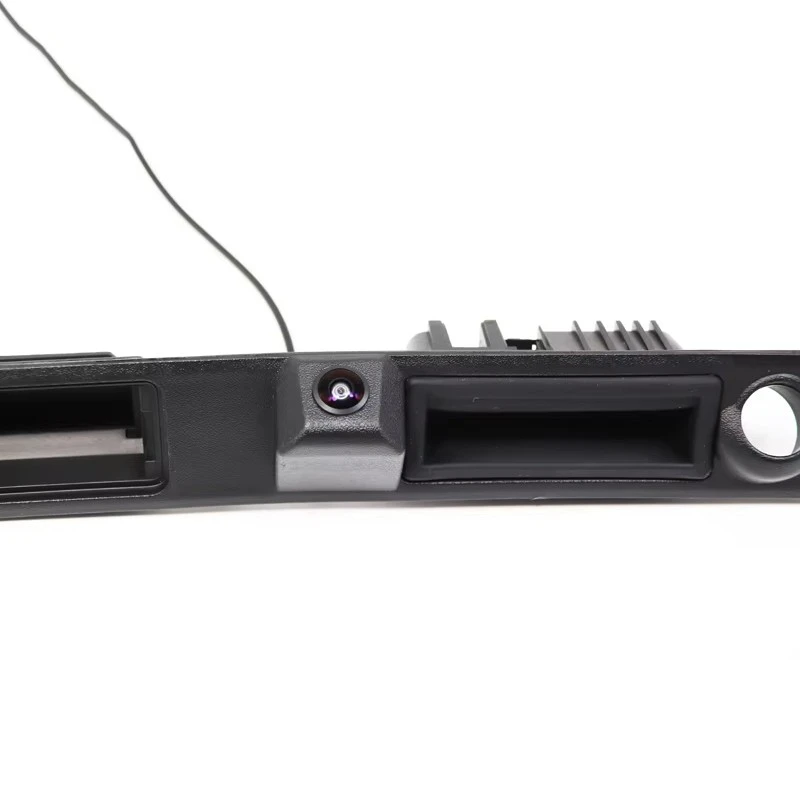
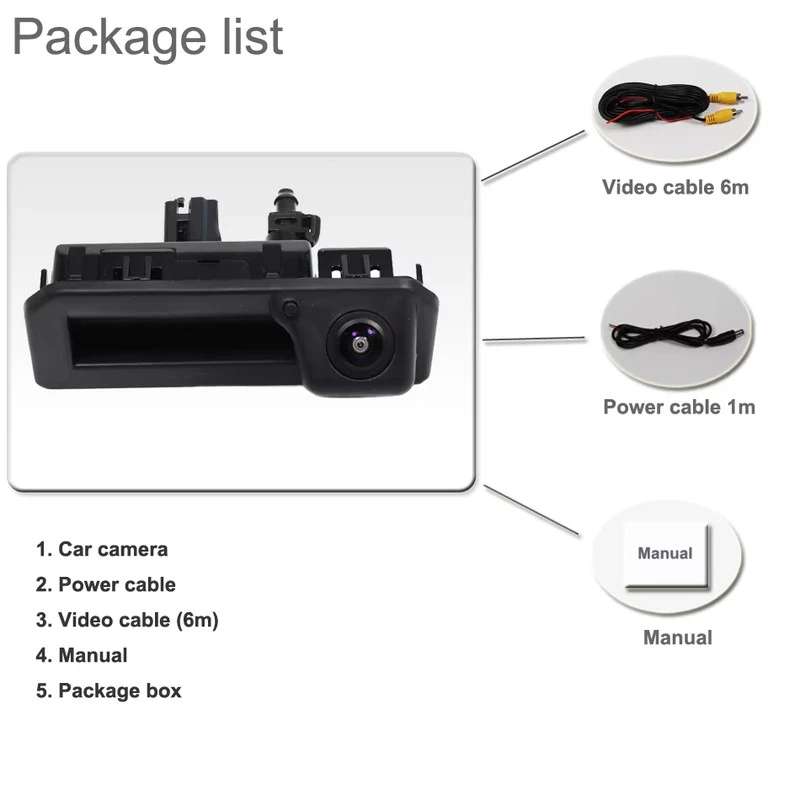
Audi handle cameras come in various models, each with its own set of features and technical specifications. Some of our popular models include the Audi Compact Handle Camera (OEM - Spec Design), Audi A6 Extended Handle - Mounted Camera, and Audi A6L Handle Camera (Short Wheelbase).
Most Audi handle cameras use standard video output interfaces such as CVBS (Composite Video Broadcast Signal) or AHD (Analog High - Definition). These interfaces are designed to transmit video signals to in - car displays. However, connecting them to a computer requires some additional equipment.
For CVBS - output cameras, you'll need a video capture card that supports CVBS input. These capture cards are readily available in the market and can be easily installed in a desktop computer. Once installed, the capture card will convert the analog CVBS signal from the camera into a digital format that the computer can process.
AHD - output cameras, on the other hand, offer higher - definition video compared to CVBS. To connect an AHD camera to a computer, you'll need an AHD - compatible video capture device. Some modern capture cards support both CVBS and AHD inputs, providing more flexibility.
Benefits of Connecting to a Computer
There are several benefits to connecting an Audi handle camera to a computer. Firstly, it allows for easy video recording and storage. You can use video recording software on the computer to capture footage from the camera. This can be useful for security purposes, such as recording incidents on the road or in a parking lot.
Secondly, connecting to a computer enables advanced video analysis. You can use video editing software to enhance the footage, zoom in on specific details, or add annotations. This can be particularly helpful for automotive researchers or enthusiasts who want to study the camera's performance or analyze driving scenarios.
Thirdly, it provides a larger and more versatile display. Instead of relying on the small in - car display, you can view the camera's output on a high - resolution computer monitor. This makes it easier to see details and get a better overall view of the surroundings.
Steps to Connect an Audi Handle Camera to a Computer
- Choose the Right Capture Device: As mentioned earlier, select a video capture card or device that is compatible with the output interface of your Audi handle camera (CVBS or AHD). Make sure the capture device is supported by your computer's operating system.
- Install the Capture Device: If you're using a desktop computer, open the case and insert the video capture card into an available PCI - Express slot. Follow the manufacturer's instructions for installation. For external capture devices, simply connect them to the computer via USB or other appropriate ports.
- Connect the Camera: Use the appropriate cables to connect the Audi handle camera to the video capture device. For CVBS cameras, you'll typically use an RCA cable, while AHD cameras may require a specialized AHD cable.
- Install the Necessary Drivers: Once the hardware is connected, install the drivers for the video capture device. These drivers can usually be downloaded from the manufacturer's website. Follow the installation wizard to complete the driver installation.
- Configure the Recording Software: Install video recording software on your computer. There are many free and paid options available, such as VLC Media Player, OBS Studio, or Windows Movie Maker. Configure the software to use the video capture device as the input source.
- Test the Connection: Launch the video recording software and check if the camera's footage is being displayed on the computer screen. Adjust the settings as needed, such as resolution, frame rate, and color balance.
Considerations and Limitations
While it is possible to connect an Audi handle camera to a computer, there are some considerations and limitations. Firstly, the camera's power supply needs to be addressed. In a car, the camera is usually powered by the vehicle's electrical system. When connecting to a computer, you may need to use an external power adapter to ensure the camera functions properly.
Secondly, the quality of the video may be affected by the length of the cables and the interference in the environment. Longer cables can result in signal degradation, especially for analog signals like CVBS. To minimize interference, use shielded cables and keep them away from sources of electromagnetic interference, such as power cables or motors.
Finally, some Audi handle cameras may have built - in encryption or proprietary protocols that prevent easy connection to a computer. In such cases, you may need to consult the camera's technical documentation or contact the manufacturer for assistance.
Conclusion
In conclusion, it is indeed possible to connect an Audi handle camera to a computer with the right equipment and setup. Whether you're looking to record video for security, perform video analysis, or simply enjoy a better viewing experience, the process can be relatively straightforward. As a supplier of Audi handle cameras, we are committed to providing high - quality products and supporting our customers in their technical endeavors.
If you're interested in purchasing our Audi handle cameras or have any questions about connecting them to a computer, please feel free to reach out to us. We're here to assist you with your procurement needs and provide you with the best solutions for your automotive video requirements.
References
- "Video Capture Card Installation Guide", Various Manufacturers
- "Audi Handle Camera Technical Manuals", Our Product Documentation


