


As a supplier of BMW handle cameras, I often receive inquiries from customers about how to reset their cameras to factory settings. This process can be crucial for resolving various issues, such as image distortion, connectivity problems, or when you simply want to start fresh. In this blog post, I'll guide you through the steps to reset your BMW handle camera to its original state.
Why Reset to Factory Settings?
Before we dive into the reset process, let's understand why you might need to do it. Over time, your camera may accumulate software glitches, incorrect settings, or compatibility issues. Resetting to factory settings can wipe out these problems and restore the camera to its optimal performance. It's like giving your camera a clean slate, allowing it to function as it did when it was first purchased.
Prerequisites
Before you begin the reset process, there are a few things you should do:
- Backup important data: Although the camera doesn't typically store large amounts of user data, it's always a good idea to check if there are any custom settings or recordings that you want to keep.
- Ensure the camera is powered on: Make sure your BMW handle camera is properly connected to the power source and is turned on.
- Refer to the user manual: Every camera model may have slight variations in the reset process. Consult your camera's user manual for specific instructions.
Step-by-Step Guide to Resetting Your BMW Handle Camera
Step 1: Locate the Reset Button
The first step is to find the reset button on your BMW handle camera. This button is usually small and may be recessed to prevent accidental presses. It's often located on the side or back of the camera. You may need a small, pointed object like a paperclip to press the button.
Step 2: Prepare for the Reset
Before pressing the reset button, make sure the camera is in a stable position and that you have access to the necessary controls. You may also want to note down any custom settings you've made, as these will be lost after the reset.
Step 3: Press and Hold the Reset Button
Once you've located the reset button, use your paperclip or other pointed object to press and hold it. You'll need to hold the button for a specific amount of time, usually around 10 - 15 seconds. Keep an eye on the camera's indicator lights; they may flash or change color to indicate that the reset process has begun.
Step 4: Wait for the Reset to Complete
After you've held the reset button for the required time, release it and wait for the camera to complete the reset process. This may take a few minutes, during which the camera will restart and reinitialize its settings. You may see the camera's display turn off and then back on again.
Step 5: Check the Camera's Settings
Once the reset is complete, check the camera's settings to ensure they've been restored to their factory defaults. You can do this by accessing the camera's menu system, which is usually accessible through a button on the camera or via a connected device.
Troubleshooting
If you encounter any problems during the reset process, here are some common issues and solutions:
- The camera doesn't reset: Make sure you're pressing the reset button for the correct amount of time. If the problem persists, try disconnecting the camera from the power source for a few minutes and then reconnecting it before attempting the reset again.
- The camera doesn't turn on after the reset: Check the power connection to ensure it's secure. You may also want to try using a different power source or cable.
- The settings aren't restored correctly: If you notice that some settings aren't restored to their factory defaults, try repeating the reset process. If the problem still exists, contact our customer support team for further assistance.
Related Products
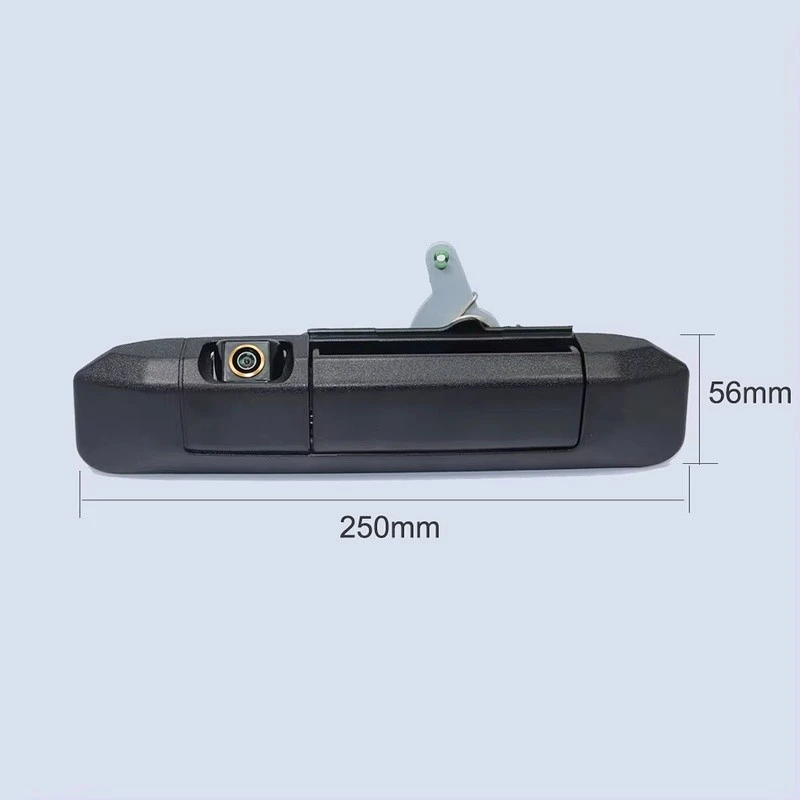
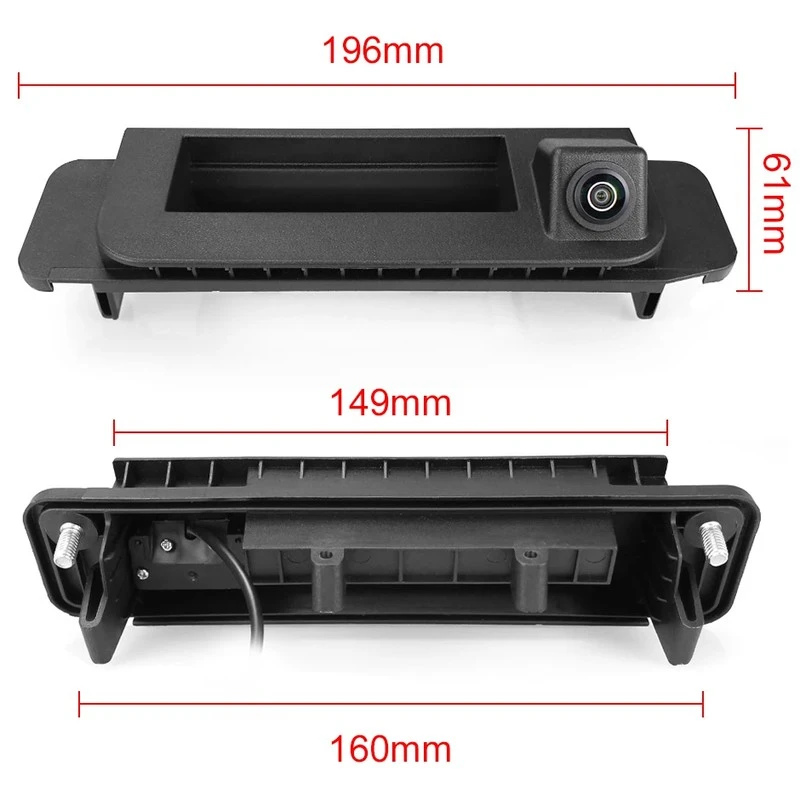
If you're interested in other types of cameras, we also offer a range of high-quality products, including the Toyota Tacoma Heavy-Duty Reverse Camera (2016 - 2023 Full Compatibility), the Audi A6L Handle Camera (Short Wheelbase), and the 2015 - 2021 Mercedes-Benz C-Class/CLA Factory Screen Reverse Camera. These cameras are designed to provide reliable performance and enhance your driving experience.
Contact Us for Purchase and Consultation
If you're interested in purchasing a BMW handle camera or have any questions about our products, we're here to help. Our team of experts can provide you with detailed information about our camera models, features, and compatibility. We also offer competitive pricing and excellent customer service.
Whether you're a professional installer or a DIY enthusiast, we can assist you in finding the right camera for your needs. Contact us today to start the procurement negotiation process and take the first step towards enhancing your vehicle's safety and functionality.
References
- BMW Handle Camera User Manual
- Industry Best Practices for Camera Reset Procedures


